
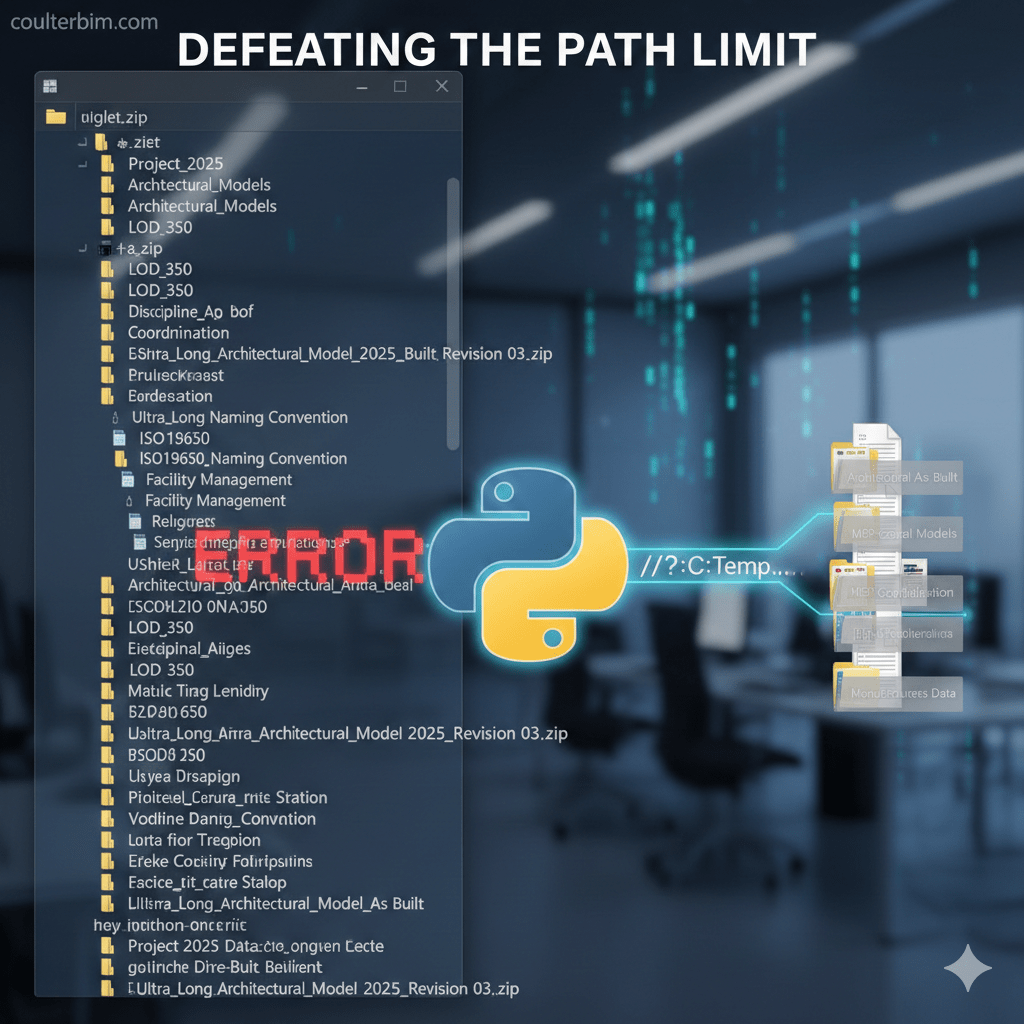
If you use the Autodesk Desktop Connector (ADC) to manage project data, you’ve likely hit the “hateful” path length error. You receive a massive document package with an endless “Russian Doll” of sub-directories: Discipline > Category > Sub-Category > Manuals > [A filename as long as a novel].pdf.
On your local drive, it looks fine. But the moment you try to sync it to the cloud, the Desktop Connector hits a hard ceiling.
The Problem: The 244-Character Trap
Windows has its own limits, but the Autodesk Desktop Connector is even tighter. By the time you account for the local “overhead” (your Windows profile, the Hub name, and the Project name), you’ve already burned through nearly 100 characters.
In a complex project, this leaves almost no room for the actual filename. Once that 244-character limit is reached, the ADC simply stops. It won’t upload, it won’t sync, and it won’t unzip files into that location.
Why Standard Workarounds Often Fail
- Web Uploads: The web interface often blocks bulk folder uploads if they are too deep or don’t meet strict project naming standards.
- Zip and Extract: You might get a Zip file up there, but the “Extract” tool isn’t always available in the web view, and unzipping locally through the ADC triggers the path error all over again.
- The Web Move: Moving 40+ folders one-by-one on a browser is an exercise in frustration.
The Solution: The “Shallow Staging” Strategy
After much trial and error, I found a three-step workflow to get deep folder structures into a project without the sync errors.
1. The “Flatten” (Local Surgery)
Before the data even touches the ADC, use a simple script to “crush” the hierarchy. Pull all files from those deep sub-folders up into a single main discipline root. This “purchases” you 60+ characters of safety by killing the nested folder names. I’ve included the Python script I use for this at the bottom of this article.
2. The “Shallow Landing”
Instead of dragging your folders directly into a deep subdirectory, drop them directly into the Project Files root. At the root, the path is shortest, and the Desktop Connector accepts the upload because the total character count is well under 244.
3. The “Desktop Connector Cut-and-Paste”
Once the folders are 100% synced and “Green” in the cloud, stay in Windows Explorer and Cut and Paste them from the root into their final deep destination.
Why this works: In version 16.x and above, the ADC is smart enough to treat this as a Cloud Move. Instead of re-uploading the data, it sends a command to the server to change the folder’s parent ID. It bypasses the local path length check during the “move” because the files are already residing in the cloud’s database.
The “Hierarchy Crusher” Python Script
This script allows you to select a parent folder (like your local ‘Temp’ folder) and automatically moves every file inside it up to the first folder level, deleting the now-empty deep sub-folders.
import os
import shutil
import tkinter as tk
from tkinter import filedialog

def batch_flatten_folders():
    root = tk.Tk()
    root.withdraw()
    root.attributes('-topmost', True)

    # Select the parent folder containing your discipline folders
    parent_folder = filedialog.askdirectory(title="Select Parent Folder")

    if not parent_folder:
        return

    # Get all the main folders inside (e.g., Discipline folders)
    main_folders = [os.path.join(parent_folder, d) for d in os.listdir(parent_folder)
                               if os.path.isdir(os.path.join(parent_folder, d))]

    for root_discipline in main_folders:
        for root_dir, dirs, files in os.walk(root_discipline, topdown=False):
            if root_dir == root_discipline:
                continue

            for name in files:
                if name.lower() == "thumbs.db":
                    try: os.remove(os.path.join(root_dir, name))
                    except: pass
                    continue

                old_path = os.path.join(root_dir, name)
                new_path = os.path.join(root_discipline, name)

                # Handle name collisions
                counter = 1
                while os.path.exists(new_path):
                    base, ext = os.path.splitext(name)
                    new_path = os.path.join(root_discipline, f"{base}_{counter}{ext}")
                    counter += 1

                try:
                    shutil.move(old_path, new_path)
                except Exception as e:
                    print(f"Error moving {name}: {e}")

            try:
                os.rmdir(root_dir)
            except:
                pass

    print("Batch Processing Complete.")

if __name__ == "__main__":
batch_flatten_folders()
Disclaimer: Always test scripts and major file moves on a small “test” folder or a copy of your data first. File moves can be permanent, and it’s vital to ensure your specific folder structure reacts as expected before running it on live project data.
 Coulter BIM Information Management
Leave a comment